 PowerupStack
You can create a free backup of an instance by downloading all its files to your own device. Downloading the files is free, and storing the archive costs nothing extra if you already have enough local or cloud storage.
Create a free backup
- Open the File Management page for your instance.
- Click Download all files in the file manager toolbar.
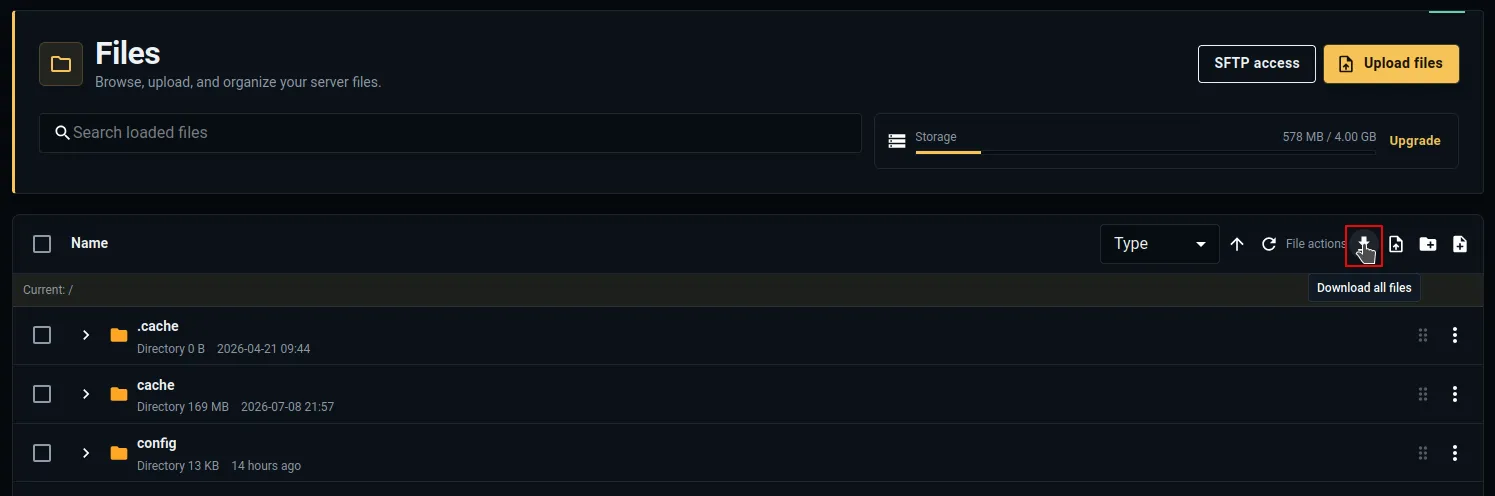
- Wait for the archive to be prepared and downloaded. The time required depends on the amount of data in the instance.
- Confirm that the downloaded archive is present on your device.
- Optionally move the archive to a dedicated backup location or upload it to cloud storage for added redundancy.
Downloaded files compared with managed backups
A downloaded archive is a self-managed backup. You choose where it is stored and are responsible for keeping it safe, checking that it can be accessed, and retaining the versions you need. Restoring it requires you to upload and place the files back on the instance yourself.
A managed backup provides a more convenient experience. From the Backups page, you can create a backup in a few clicks and restore it just as easily. Manually created managed backups are billed according to the storage they consume.
All paid plans also include seven days of automatic backups. The free tier does not include automatic backups, so download your files regularly or use billed managed backups if you prefer easier backup creation and restoration.